
Gusto’s sign-in page is shared by company administrators, employees and contractors. An employee can use the account to view payment information and complete employer-enabled tasks, while an administrator sees company payroll and HR tools. Gusto explicitly warns users to sign in only through app.gusto.com/login or the official mobile app. This matters because payroll-themed phishing pages often imitate sign-in screens.
Gusto Login Quick Details
| Official sign-in | app.gusto.com/login |
|---|---|
| Who uses it | Admins, employees and contractors use the same Gusto sign-in environment |
| Sign-in methods | Email plus password, and supported accounts may also use a passkey |
| Unrecognized device | Gusto may send an authorization link to the email on file |
| Account setup | Employees normally begin from the welcome email sent through their employer |
Who Can Use Gusto Login?
This portal is intended for authorized users connected to an organization that has enabled the service. The exact features and permissions are controlled by that organization.
- Employees paid or managed through Gusto
- Company administrators and payroll operators
- Contractors invited to a Gusto account
- People with more than one employer profile in Gusto
What You Need Before Signing In
- The personal or work email address stored in the Gusto profile
- The account password or a configured passkey
- Access to the email or authentication method used for device authorization and 2-step verification
- For a first-time employee: the Gusto welcome email or a confirmed invitation from the employer
How to Complete the Gusto Login Process
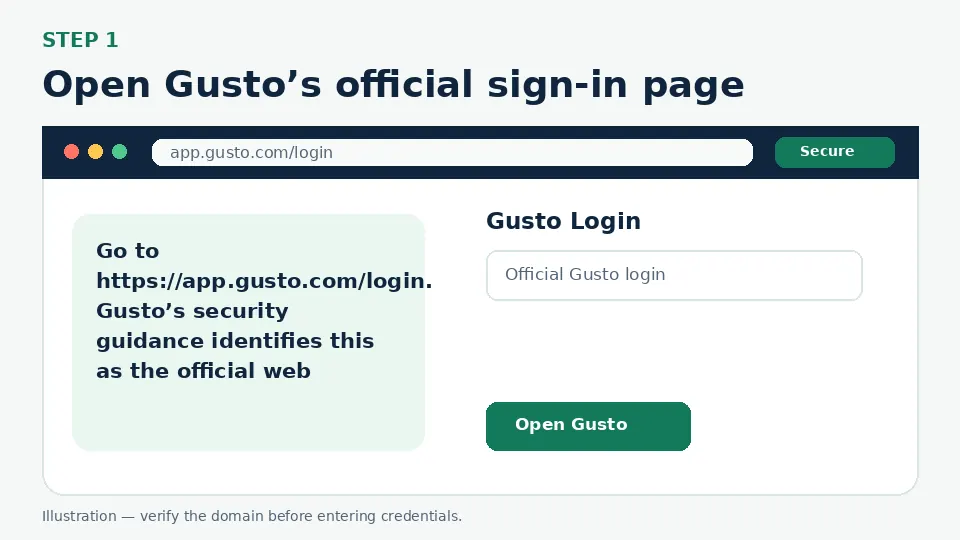
Open Gusto’s official sign-in page
Go to https://app.gusto.com/login. Gusto’s security guidance identifies this as the official web sign-in destination. Check the full domain before entering payroll credentials.
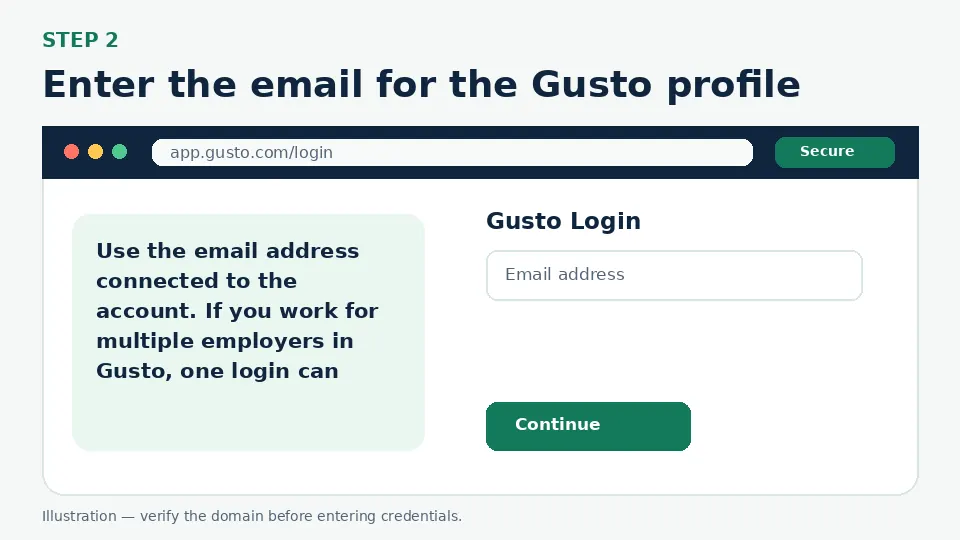
Enter the email for the Gusto profile
Use the email address connected to the account. If you work for multiple employers in Gusto, one login can provide access to multiple profiles; do not create a separate account merely because another employer invited you.
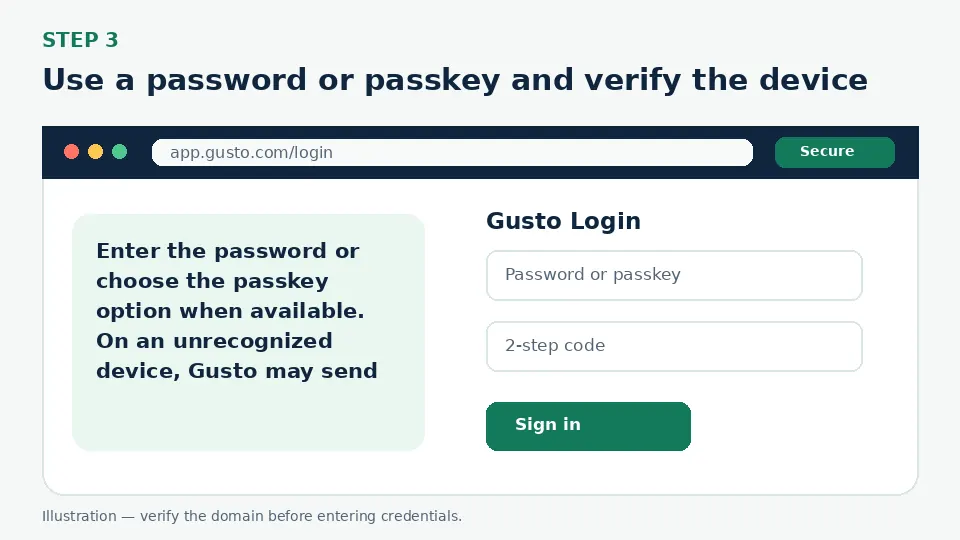
Use a password or passkey and verify the device
Enter the password or choose the passkey option when available. On an unrecognized device, Gusto may send an authorization link to the email on file. Complete 2-step verification only through the official flow.
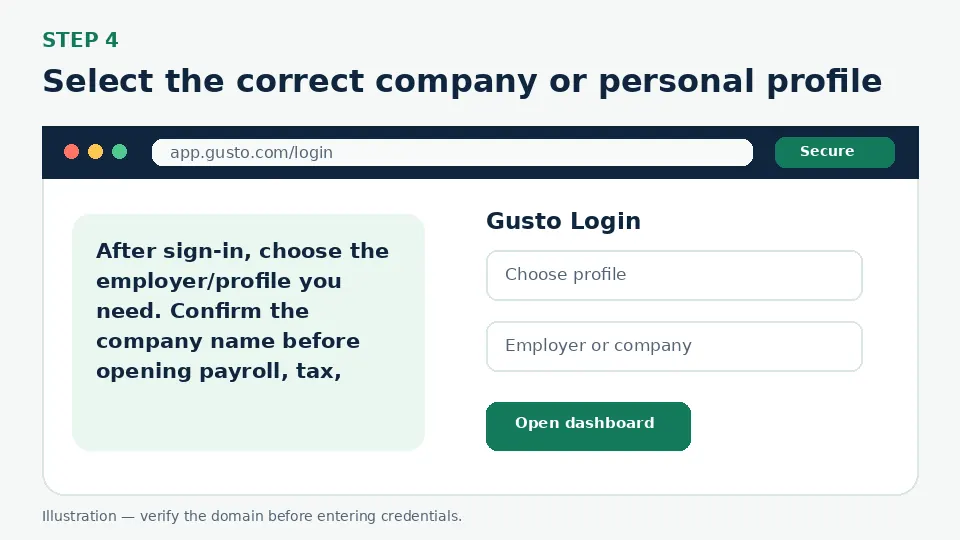
Select the correct company or personal profile
After sign-in, choose the employer/profile you need. Confirm the company name before opening payroll, tax, benefits or personal-information sections.
First-Time Account Setup
Employees normally set up an account from a welcome email sent through Gusto. The official setup guidance says to use the link in that email, confirm account details and set the password. If the welcome message cannot be found, ask the employer to verify the email address in the employee profile and resend the invitation. Do not accept an invitation sent from a look-alike domain.
Forgot Username or Password
On the Gusto sign-in screen, select Forgot password, enter the account email and request the reset link. Gusto also provides a Forgot email path in supported flows. When the account email is unknown, first check past Gusto messages or confirm the address with the employer. The password reset and device-authorization email should lead back to a gusto.com destination.
MFA, Verification Codes and Single Sign-On
Gusto supports 2-step verification and may offer text-message or authenticator-app methods. Gusto states that its staff will not send or ask you for a 2-step verification code. If you cannot access a code, use the “Need help with 2-step verification?” option after entering the correct email and password. A single Gusto login can cover multiple employers, so 2-step settings apply across those profiles.
Common Login Problems and Direct Fixes
| Problem | Likely cause | What to do |
|---|---|---|
| Email is not recognized | The employer invited a different email or setup is incomplete | Confirm the email with the employer and ask for the invitation to be resent. |
| Authorization link does not arrive | The message is filtered or the stored email is inaccessible | Check spam and confirm the email on the employee record. |
| 2-step code fails | Wrong method, stale code, or device clock issue | Request a fresh code and use the official 2-step troubleshooting link. |
| Wrong employer profile opens | The account has access to multiple companies | Use the profile/company switcher and confirm the employer name. |
| Former employer remains visible | Historical access has not been removed | Use the correct profile and contact the former employer or Gusto support if access should change. |
| A message asks for the code | Likely phishing or social engineering | Do not share the code; access Gusto directly and review account security. |
Mobile and Browser Troubleshooting
- Start from the official login URL instead of a search advertisement or a saved third-party page.
- Use an updated version of Chrome, Safari, Firefox or Edge and allow cookies required by the official portal.
- Close duplicate sign-in tabs before retrying, especially when an SSO or Okta flow returns to the login screen.
- Switch between Wi-Fi and cellular data only to test connectivity; do not bypass employer security controls.
- Do not store credentials on a shared computer. Sign out fully after accessing payroll, school or employee information.
How to Avoid Fake Login Pages
Bookmark the official destination after confirming app.gusto.com/login. A fake page may copy colors and logos but use a misspelled address, ask for an MFA code before a normal password step, request payment, or tell you to send credentials to “support.” Leave that page and open the official domain manually.
Gusto Login FAQs
What is the official Gusto login page?
Gusto identifies https://app.gusto.com/login as its official web sign-in destination.
Do employees and administrators use the same Gusto login?
Yes. Gusto’s official guidance says admins and team members sign in through the same environment, then see permissions appropriate to their profiles.
Can I sign in to multiple employers with one Gusto account?
Yes. Gusto says one login and one 2-step setup can access multiple employer profiles connected to the account.
How do I reset my Gusto password?
Select Forgot password on the official sign-in page, enter the email and use the reset link sent by Gusto.
What if I forgot the email used for Gusto?
Use the Forgot email option when shown, search for earlier Gusto messages, or confirm the email with the employer.
Why did Gusto send an authorization link?
Gusto may use an email authorization link when the device is not recognized.
Will Gusto ask me to provide a 2-step code by phone?
Gusto states that it will not send or ask you for a 2-step verification code.
Can I use a passkey for Gusto?
Supported accounts may sign in with a saved passkey. The option appears in the official Gusto sign-in flow.
Where can I find employee pay information?
After sign-in, choose the correct employer profile and open the pay or documents area made available by that employer.
What should I do if the welcome email is missing?
Ask the employer to confirm your email address and resend the Gusto invitation.
Official Sources and Verification
This guide was written from the official portal and support material listed below. Portal interfaces can change, and an employer, school or organization may use a custom SSO path. The organization’s current instructions control when they differ from a general guide.