Dayforce is configured separately by each employer. That is why a universal employee username, password or Company ID does not exist. Dayforce’s official employee-help information directs desktop users to dayforcehcm.com and says the employer provides the Company ID. Some organizations use the default Dayforce login, while others use single sign-on and redirect employees to the organization’s identity provider.
Dayforce Login Quick Details
| Official desktop starting point | dayforcehcm.com |
|---|---|
| Key login detail | Company ID supplied by the employer; it is not the employee number or username |
| Account credentials | Username or verified email plus password, unless the employer uses SSO |
| Mobile access | The employer must enable mobile access; the app still requires the organization’s Company ID |
| Employee support | Current or former employer’s HR/payroll department handles company-specific access |
Who Can Use Dayforce Login?
This portal is intended for authorized users connected to an organization that has enabled the service. The exact features and permissions are controlled by that organization.
- Employees whose organization uses Dayforce
- Former employees allowed to retrieve historical payroll or tax records
- Managers and supervisors with employee self-service permissions
- Employees using the Dayforce mobile app after the employer enables mobile access
What You Need Before Signing In
- The employer’s exact Dayforce Company ID
- The user name or verified email assigned to the employee
- The current password, or the organization’s SSO credentials
- A configured MFA method when the employer requires multifactor authentication
How to Complete the Dayforce Login Process
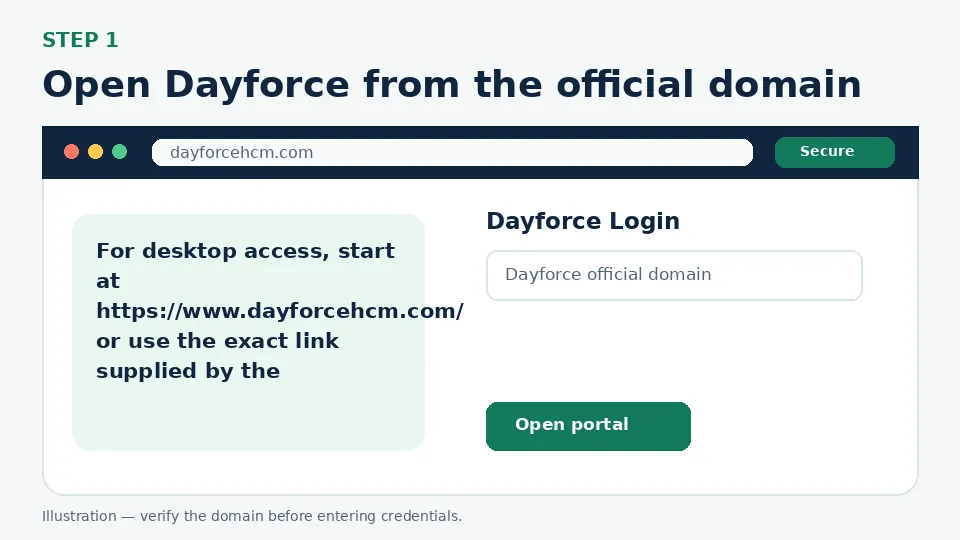
Open Dayforce from the official domain
For desktop access, start at https://www.dayforcehcm.com/ or use the exact link supplied by the employer. A company may have a dedicated Dayforce instance, so a saved employer link can be more direct than the generic starting page.
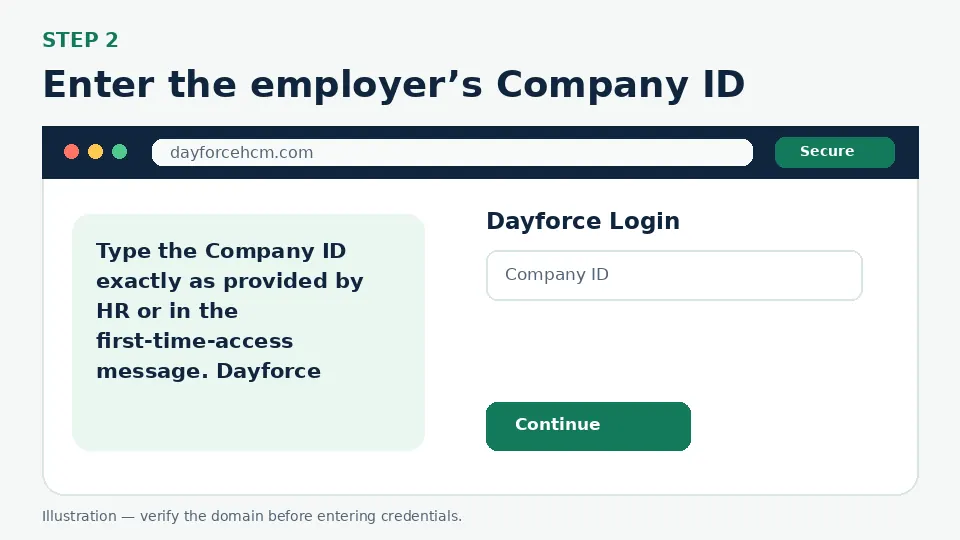
Enter the employer’s Company ID
Type the Company ID exactly as provided by HR or in the first-time-access message. Dayforce explains that the Company ID is unique to the workplace and differs from the employee number and username.
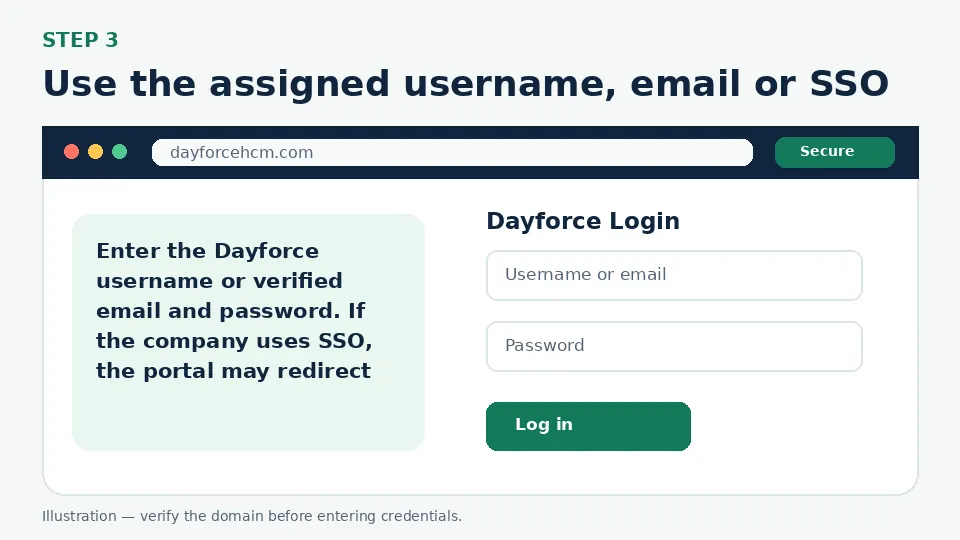
Use the assigned username, email or SSO
Enter the Dayforce username or verified email and password. If the company uses SSO, the portal may redirect to the organization’s sign-in page; use the same credentials used for the employer network.
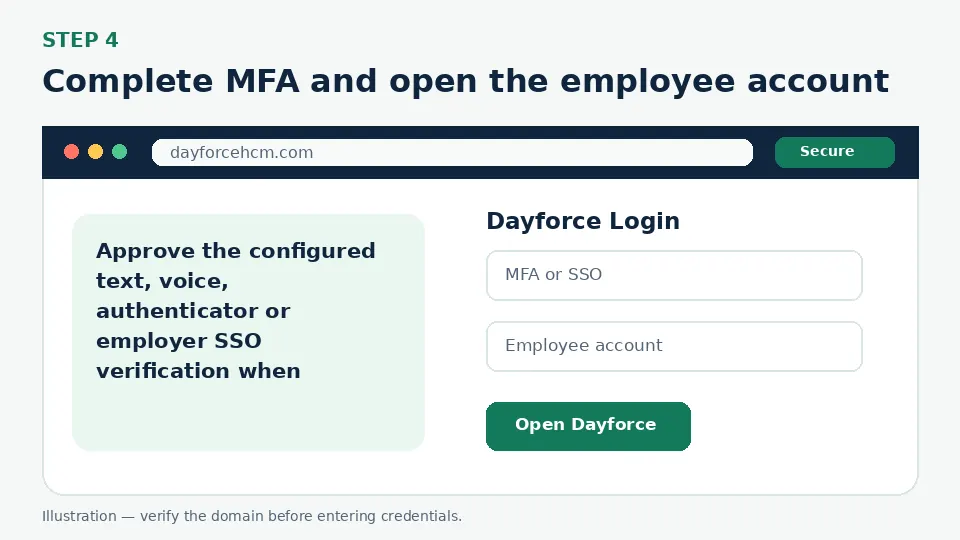
Complete MFA and open the employee account
Approve the configured text, voice, authenticator or employer SSO verification when requested. After authentication, confirm the employer/account before opening pay, time, schedule or tax features.
First-Time Account Setup
First-time login details come from the employer. Depending on configuration, the user may receive a Company ID, user ID, temporary password or SSO instruction. The Dayforce mobile app asks for the same Company ID used for the main Dayforce application. If no Company ID was supplied, ask HR or the payroll administrator rather than guessing a popular company name found online.
Forgot Username or Password
The official mobile guidance says a logged-out user can select Reset Your Password or Forgot Password, then enter the username or registered email to receive a reset link when self-service recovery is enabled. Some organizations disable that option; in that case a manager or HR/payroll administrator must reset access. Repeated failed attempts can lock the account for a period determined by the employer.
MFA, Verification Codes and Single Sign-On
Dayforce login can use text message, voice call, an authenticator application or the employer’s SSO method. The exact choices are organization-specific. If the app redirects to a browser for SSO, verify that the page belongs to Dayforce or the employer’s known identity provider. The mobile app itself does not define one universal Company ID or initial-password format.
Common Login Problems and Direct Fixes
| Problem | Likely cause | What to do |
|---|---|---|
| Company ID is invalid | The employee number was entered or the workplace ID is wrong | Get the exact Company ID from HR, payroll or the first-time-access email. |
| Forgot Password is missing | The employer did not enable self-service recovery | Contact the manager or HR/payroll department. |
| Account locked after failed attempts | Too many incorrect passwords | Wait for the employer-defined lock period or ask HR to reset access. |
| SSO redirect fails | Employer identity-provider session or network issue | Start from the employer link, close stale sessions and contact internal IT. |
| Mobile app cannot add the account | Mobile access is disabled or the Company ID is wrong | Confirm that the employer enabled mobile access and verify the Company ID. |
| Former employee cannot see documents | Historical access or document publication is controlled by the employer | Contact the former employer’s HR/payroll department. |
Mobile and Browser Troubleshooting
- Start from the official login URL instead of a search advertisement or a saved third-party page.
- Use an updated version of Chrome, Safari, Firefox or Edge and allow cookies required by the official portal.
- Close duplicate sign-in tabs before retrying, especially when an SSO or Okta flow returns to the login screen.
- Switch between Wi-Fi and cellular data only to test connectivity; do not bypass employer security controls.
- Do not store credentials on a shared computer. Sign out fully after accessing payroll, school or employee information.
How to Avoid Fake Login Pages
Bookmark the official destination after confirming dayforcehcm.com. A fake page may copy colors and logos but use a misspelled address, ask for an MFA code before a normal password step, request payment, or tell you to send credentials to “support.” Leave that page and open the official domain manually.
Dayforce Login FAQs
What website should employees use for Dayforce login?
Dayforce’s employee-help page directs desktop users to dayforcehcm.com, but an employer may provide a dedicated instance or SSO link.
What is a Dayforce Company ID?
It is the organization-specific identifier supplied by the employer. It is different from an employee number and username.
Where can I find my Company ID?
Check the first-time-access email, employer instructions or the Dayforce Mobile App section in an existing profile, or ask HR.
Can I guess the Dayforce Company ID from my employer name?
Do not guess. Use only the exact ID provided by the employer.
How do I reset the Dayforce password?
Use Forgot Password or Reset Your Password when available and enter the username or registered email. Otherwise contact HR/payroll.
Why is the Dayforce account locked?
Repeated incorrect attempts can cause a temporary lock for a period set by the organization.
Does Dayforce use single sign-on?
Some employers enable SSO, which redirects employees to the organization’s identity provider.
Can former employees log in to Dayforce?
That depends on the former employer’s access policy. Dayforce directs employee questions to the current or former employer’s HR/payroll department.
Can I use Face ID or Touch ID in Dayforce?
The official mobile documentation says the app can rely on device/password-manager autofill, but the login configuration is still controlled by the organization.
Who supports a company-specific Dayforce login?
The employer’s HR, payroll or internal support team handles the Company ID, permissions and organization-specific reset issues.
Official Sources and Verification
This guide was written from the official portal and support material listed below. Portal interfaces can change, and an employer, school or organization may use a custom SSO path. The organization’s current instructions control when they differ from a general guide.