Justworks accounts are created through an employer enrollment process and can provide access to pay, benefits, documents and other employer-enabled information. Justworks Time Tracking also redirects employees to the same Justworks sign-in environment and uses the same credentials. Because the account contains employment and tax information, open it only through login.justworks.com or an official Justworks app.
Justworks Login Quick Details
| Official login | login.justworks.com |
|---|---|
| Account creation | Begins through the enrollment invitation from the employer |
| MFA | Enabled to protect account access; supported methods depend on account setup |
| Time tracking | Official web access redirects to the same Justworks login and uses the same credentials |
| Mobile access | The Justworks mobile app accepts the user’s Justworks username and password |
Who Can Use Justworks Login?
This portal is intended for authorized users connected to an organization that has enabled the service. The exact features and permissions are controlled by that organization.
- Employees enrolled in Justworks by an employer
- Company administrators with assigned Justworks permissions
- Contractors or vendors granted limited account access
- Employees using Justworks Time Tracking
What You Need Before Signing In
- The Justworks username and password created during enrollment
- Access to the configured MFA method
- For a first-time user: the enrollment invitation sent through the employer
- For time tracking: an active Justworks account and the employer’s time-tracking setup
How to Complete the Justworks Login Process
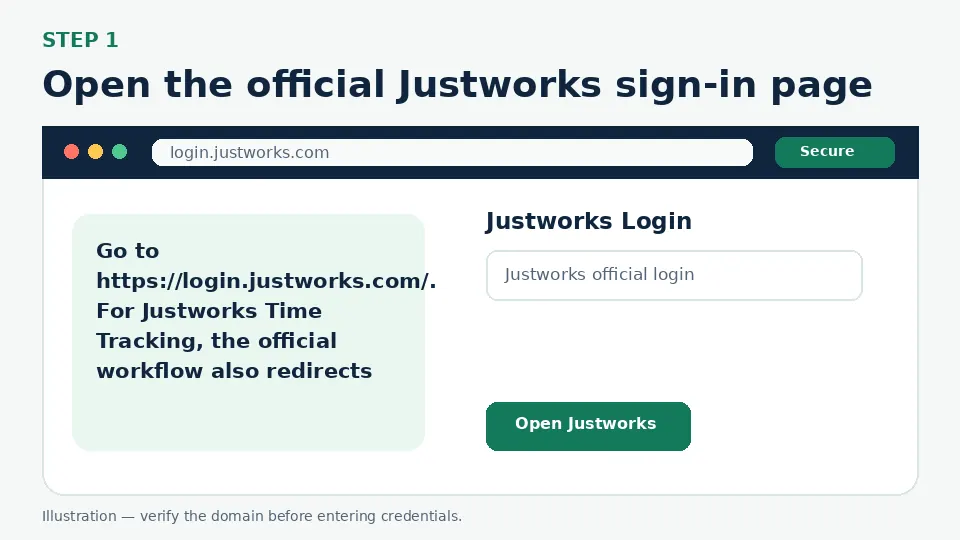
Open the official Justworks sign-in page
Go to https://login.justworks.com/. For Justworks Time Tracking, the official workflow also redirects to this login environment. Check the domain before entering employment credentials.
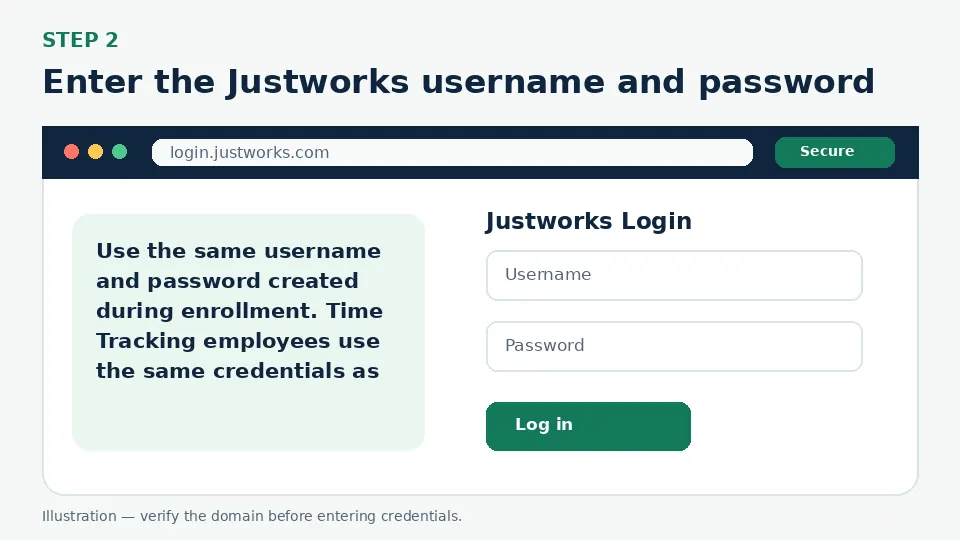
Enter the Justworks username and password
Use the same username and password created during enrollment. Time Tracking employees use the same credentials as the main Justworks account.
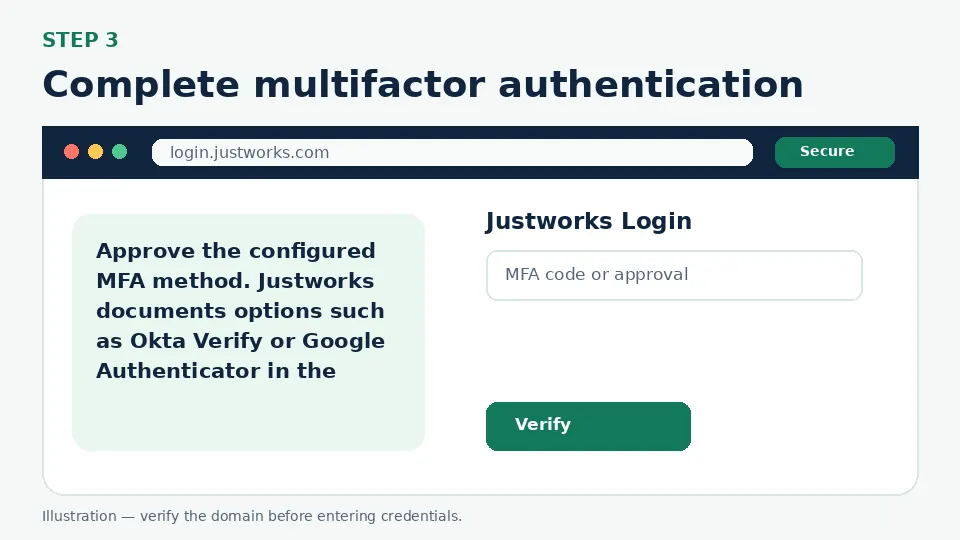
Complete multifactor authentication
Approve the configured MFA method. Justworks documents options such as Okta Verify or Google Authenticator in the Login & security settings. Use only codes generated for the sign-in you started.
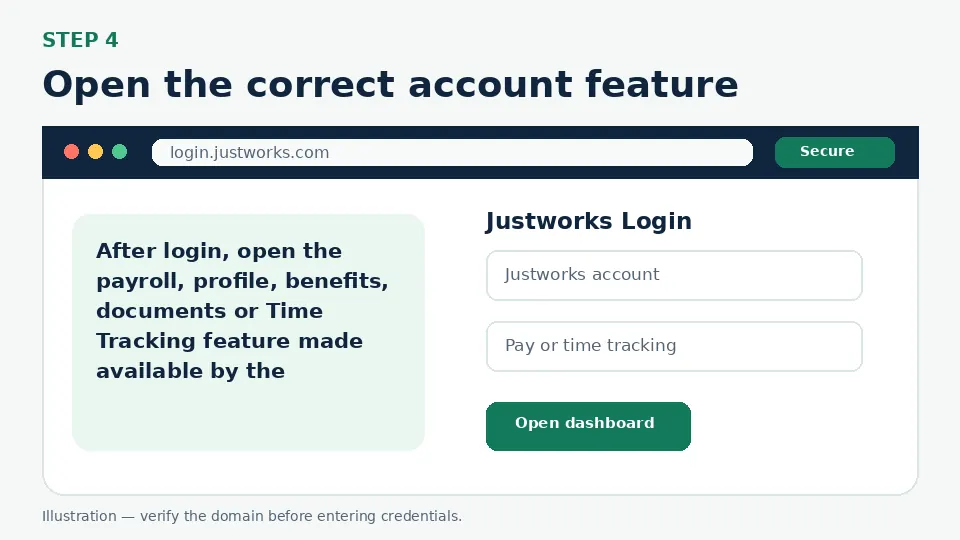
Open the correct account feature
After login, open the payroll, profile, benefits, documents or Time Tracking feature made available by the employer. Contractors and vendors may see a more limited experience.
First-Time Account Setup
Enrollment begins with an invitation from the employer. The official enrollment guide includes creating a username and password and setting up MFA. Complete enrollment from the original invitation or an employer-confirmed resend. If the invitation email uses a domain other than Justworks or sends you directly to a payment request, verify it with the employer before continuing.
Forgot Username or Password
Use Forgot Password? on the official Justworks login page. After regaining access, password and MFA settings are available in the profile’s Login & security area. Justworks Time Tracking has a separate password-reset page for certain legacy/time-tracking flows, but employees redirected to login.justworks.com should normally use the main Justworks account credentials.
MFA, Verification Codes and Single Sign-On
Justworks enables multifactor authentication to protect sensitive employment information. Official guidance describes Okta Verify and Google Authenticator as additional methods that can be managed from the Login & security tab. If the registered phone or authenticator is unavailable, use the official recovery path or employer/Justworks support rather than creating a second account.
Common Login Problems and Direct Fixes
| Problem | Likely cause | What to do |
|---|---|---|
| Enrollment link no longer works | The invitation expired or was already used | Ask the employer to confirm the account and resend enrollment. |
| Username/password is rejected | A different username was created or the password changed | Use Forgot Password on login.justworks.com. |
| MFA device is unavailable | The configured authenticator or phone cannot be accessed | Use official MFA recovery/support; do not create a duplicate account. |
| Time Tracking login loops | Stale cookies or the main Justworks session is incomplete | Sign out, clear Justworks cookies and start from the official Time Tracking link. |
| Feature is missing | The employer has not enabled it or the user role is limited | Ask the employer administrator to review permissions. |
| Unexpected MFA prompt appears | Someone else may be attempting access | Do not approve it; sign in directly and review account security. |
Mobile and Browser Troubleshooting
- Start from the official login URL instead of a search advertisement or a saved third-party page.
- Use an updated version of Chrome, Safari, Firefox or Edge and allow cookies required by the official portal.
- Close duplicate sign-in tabs before retrying, especially when an SSO or Okta flow returns to the login screen.
- Switch between Wi-Fi and cellular data only to test connectivity; do not bypass employer security controls.
- Do not store credentials on a shared computer. Sign out fully after accessing payroll, school or employee information.
How to Avoid Fake Login Pages
Bookmark the official destination after confirming login.justworks.com. A fake page may copy colors and logos but use a misspelled address, ask for an MFA code before a normal password step, request payment, or tell you to send credentials to “support.” Leave that page and open the official domain manually.
Justworks Login FAQs
What is the official Justworks login URL?
Use https://login.justworks.com/ for the main Justworks account.
Do Justworks Time Tracking and Justworks use the same login?
Official Time Tracking guidance says employees are redirected to login.justworks.com and use the same username and password as the Justworks account.
How do I create a Justworks account?
Complete the employer-issued enrollment invitation and create the username, password and MFA setup.
How do I reset the Justworks password?
Select Forgot Password on the official login page and follow the account-recovery instructions.
Does Justworks require MFA?
Justworks uses multifactor authentication to protect accounts; available methods depend on setup.
Can I use Google Authenticator with Justworks?
Official Justworks MFA guidance lists Google Authenticator and Okta Verify as methods that can be managed in Login & security.
Can contractors use the Justworks app?
The official mobile-app guidance says contractors and vendors can use their login, though available features may be limited.
Why is a feature missing after login?
The employer may not have enabled the feature or the account role may not permit it.
What should I do with an unexpected MFA request?
Do not approve it. Open Justworks directly, change credentials if necessary and contact support.
Who resends a Justworks enrollment invitation?
The employer or account administrator should confirm the account and resend the invitation.
Official Sources and Verification
This guide was written from the official portal and support material listed below. Portal interfaces can change, and an employer, school or organization may use a custom SSO path. The organization’s current instructions control when they differ from a general guide.