
Many parents still search for “RenWeb login,” but the current family-facing service is presented as FACTS Family Portal. Families use it for school information such as grades, schedules, communications and other school-enabled features. The portal is school-specific: the District Code and the email address on the school record must be correct. A third-party guide cannot discover a private school code from a family name or student record.
RenWeb / FACTS Login Quick Details
| Current platform name | RenWeb family access is now presented through FACTS Family Portal |
|---|---|
| Official login selector | factsmgt.com/login |
| School-specific detail | A District Code identifies the school and is supplied by the school |
| Account creation | The email must match the address recorded by the school |
| Support route | FACTS directs SIS/Family Portal questions to the school office |
Who Can Use RenWeb / FACTS Login?
This portal is intended for authorized users connected to an organization that has enabled the service. The exact features and permissions are controlled by that organization.
- Parents and guardians at schools using FACTS SIS/Family Portal
- Students when the school provides student access
- School staff using a role-specific FACTS portal
- Families creating a portal account for the first time
What You Need Before Signing In
- The school’s District Code
- A username and password for the Family Portal account
- For account creation: an email address that exactly matches the school record
- A supported browser with cookies enabled for the sign-in process
How to Complete the RenWeb / FACTS Login Process
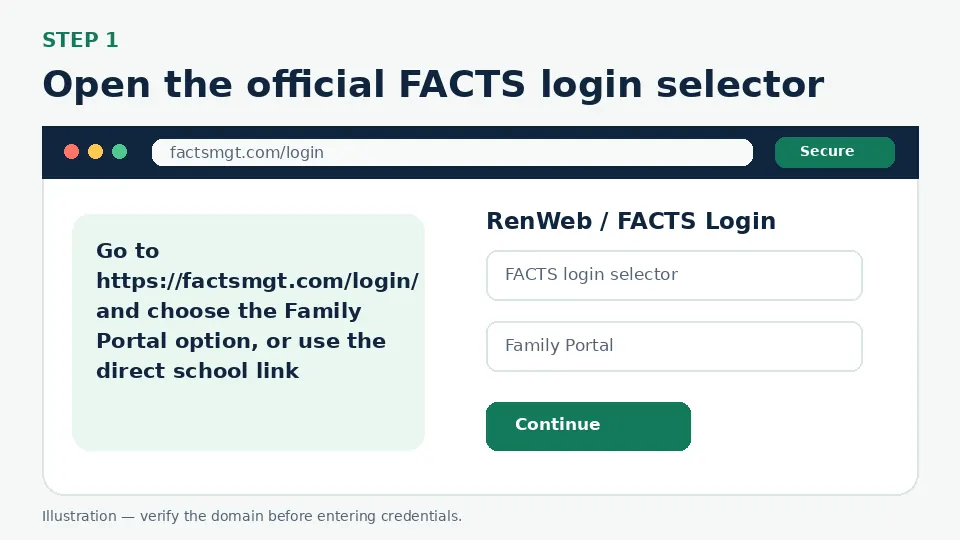
Open the official FACTS login selector
Go to https://factsmgt.com/login/ and choose the Family Portal option, or use the direct school link supplied by the school. Check that the destination belongs to factsmgt.com or renweb.com.
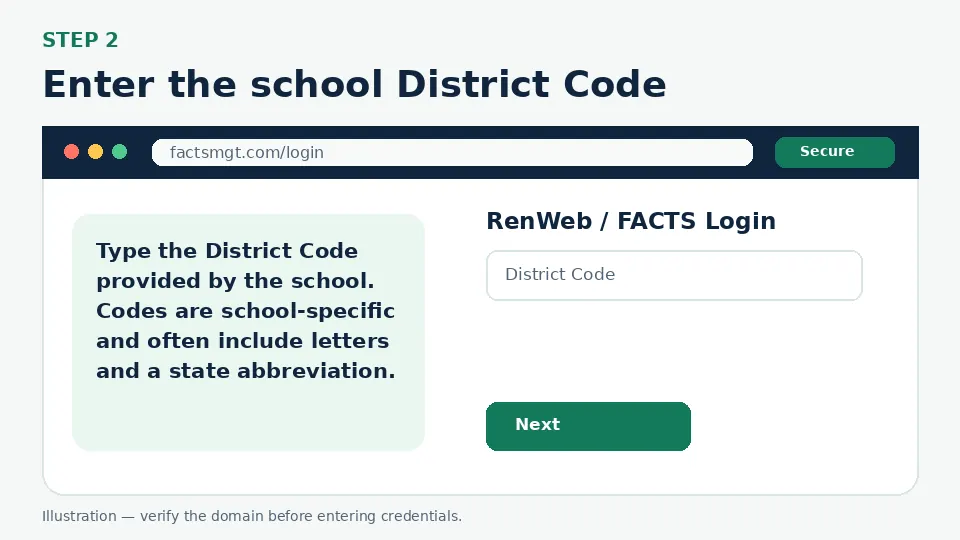
Enter the school District Code
Type the District Code provided by the school. Codes are school-specific and often include letters and a state abbreviation. Do not copy a code from an unrelated school’s public instructions.
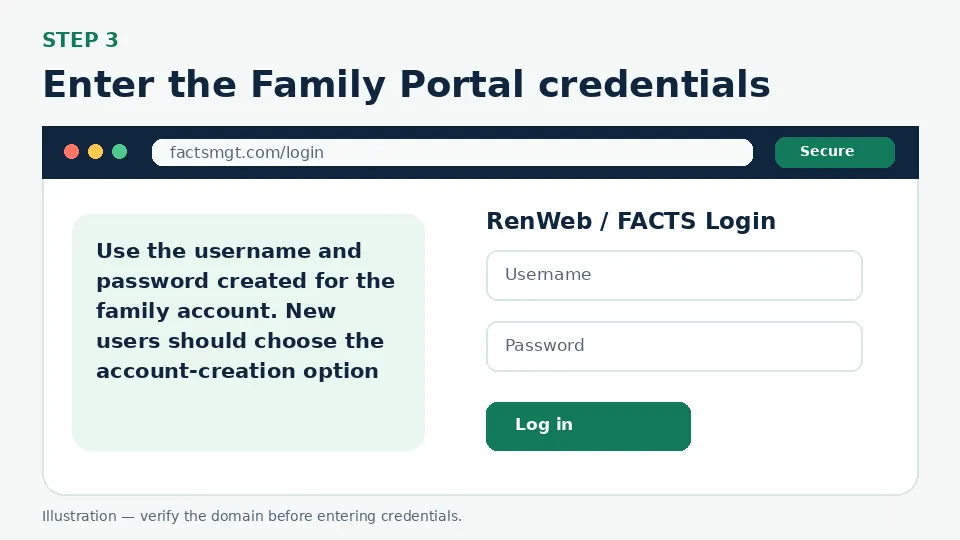
Enter the Family Portal credentials
Use the username and password created for the family account. New users should choose the account-creation option and use the same email address that the school has on file.
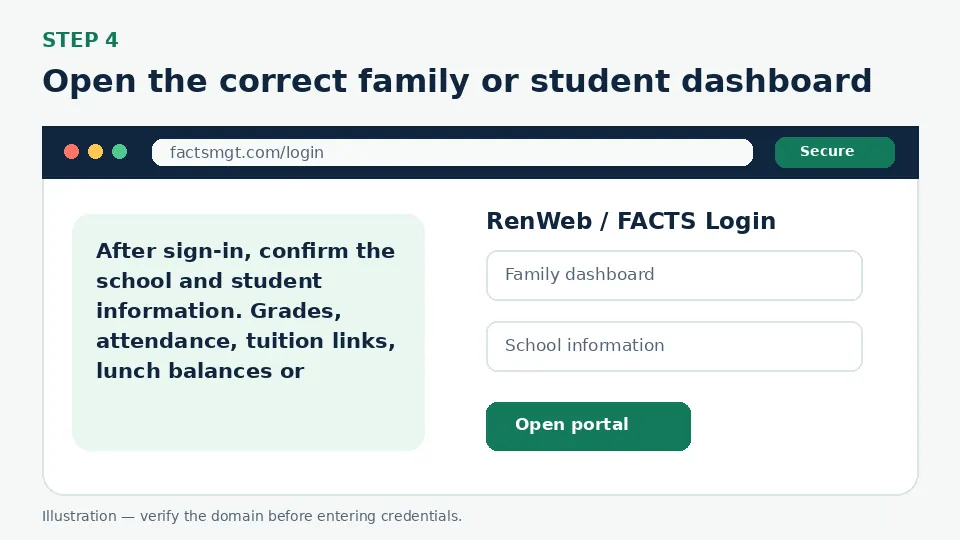
Open the correct family or student dashboard
After sign-in, confirm the school and student information. Grades, attendance, tuition links, lunch balances or communications appear only when the school enables those modules.
First-Time Account Setup
To create a Family Portal account, open the official FACTS/Family Portal path and choose the new-account option. Enter the school’s District Code and the email address recorded by the school. The system sends an account-creation link when it can match the email. If no message arrives, the most common issue is that the school has a different email address or has not enabled the family account yet.
Forgot Username or Password
Use the portal’s forgot-username or forgot-password option for the school-specific account. Recovery still depends on the email recorded by the school. FACTS states that SIS and Family Portal questions should be directed to the school office, so the school is the correct contact for a missing District Code, an unmatched email, student-linking problems or permissions.
MFA, Verification Codes and Single Sign-On
The exact authentication steps can vary by school and by portal generation. Follow the school’s official link and avoid pages that ask for tuition payment or sensitive student data before a normal FACTS/Family Portal sign-in is established. If the school uses a branded app, the same family login may apply, but the school should confirm the app and setup instructions.
Common Login Problems and Direct Fixes
| Problem | Likely cause | What to do |
|---|---|---|
| District Code is rejected | The code belongs to another school or was entered incorrectly | Use the exact code from the school office or official school instructions. |
| New account email is not found | The email differs from the school’s student record | Ask the school office to confirm or update the email. |
| No account-creation email arrives | Spam filtering or unmatched account details | Check spam, wait briefly, then contact the school office. |
| Grades or student information are missing | The school has not enabled the module or linked the student | Contact the school; portal login support cannot change academic records. |
| Old RenWeb bookmark fails | The school changed to a newer FACTS portal path | Start from FACTS’ official login selector or the school’s current site. |
| Cookies error appears | Browser blocks required cookies | Allow cookies for the official FACTS/RenWeb domain and retry. |
Mobile and Browser Troubleshooting
- Start from the official login URL instead of a search advertisement or a saved third-party page.
- Use an updated version of Chrome, Safari, Firefox or Edge and allow cookies required by the official portal.
- Close duplicate sign-in tabs before retrying, especially when an SSO or Okta flow returns to the login screen.
- Switch between Wi-Fi and cellular data only to test connectivity; do not bypass employer security controls.
- Do not store credentials on a shared computer. Sign out fully after accessing payroll, school or employee information.
How to Avoid Fake Login Pages
Bookmark the official destination after confirming factsmgt.com/login. A fake page may copy colors and logos but use a misspelled address, ask for an MFA code before a normal password step, request payment, or tell you to send credentials to “support.” Leave that page and open the official domain manually.
RenWeb / FACTS Login FAQs
Is RenWeb now FACTS Family Portal?
Yes. Parents commonly know the system as RenWeb, while FACTS currently presents the family service as FACTS Family Portal.
What is the official RenWeb/FACTS login page?
Start from https://factsmgt.com/login/ and select Family Portal, or use the school’s official direct link.
What is a RenWeb District Code?
It identifies the specific school in the Family Portal login. The school supplies the code.
Can I find my District Code from another school’s instructions?
No. Use only the code issued by your own school.
How do I create a FACTS Family Portal account?
Choose the new-account option, enter the school District Code and use the email address stored by the school.
Why is my email not recognized?
The school may have a different email on file or the family account may not be enabled.
Who resets a Family Portal account?
Use the official recovery tool first. FACTS directs unresolved SIS/Family Portal issues to the school office.
Can students use the same portal?
Student access depends on the school’s configuration and role permissions.
Why can I log in but not see grades?
The school controls which modules and records appear. Contact the school for missing academic information.
Is a school-branded FACTS app official?
It may be, but install it only from instructions provided by the school or FACTS.
Official Sources and Verification
This guide was written from the official portal and support material listed below. Portal interfaces can change, and an employer, school or organization may use a custom SSO path. The organization’s current instructions control when they differ from a general guide.