ctcLink is used across Washington State’s community and technical college system. Students, faculty and staff sign in with a ctcLink ID and an Okta-managed password. The official gateway is not a generic college username page: the ctcLink ID must be activated, and password-recovery methods must already be validated. A college help desk remains the correct contact when identity details, student records or recovery methods are incomplete.
ctcLink Login Quick Details
| Official gateway | gateway.ctclink.us |
|---|---|
| Account identifier | ctcLink ID created during account activation |
| Authentication | Okta password plus a configured security method when MFA is requested |
| Self-service recovery | Email or phone works only when it was added and validated |
| Local support | College help desk or advisor for unresolved credentials and student-ID issues |
Who Can Use ctcLink Login?
This portal is intended for authorized users connected to an organization that has enabled the service. The exact features and permissions are controlled by that organization.
- Students at participating Washington community and technical colleges
- Faculty and staff assigned a ctcLink ID
- Applicants routed from the Online Admissions Application Portal
- Users activating or recovering an Okta-backed ctcLink account
What You Need Before Signing In
- An activated ctcLink ID
- The current ctcLink/Okta password
- A configured MFA or recovery method such as email, SMS, voice or Okta Verify
- Access to the college help desk when the ID or recovery information is not available
How to Complete the ctcLink Login Process
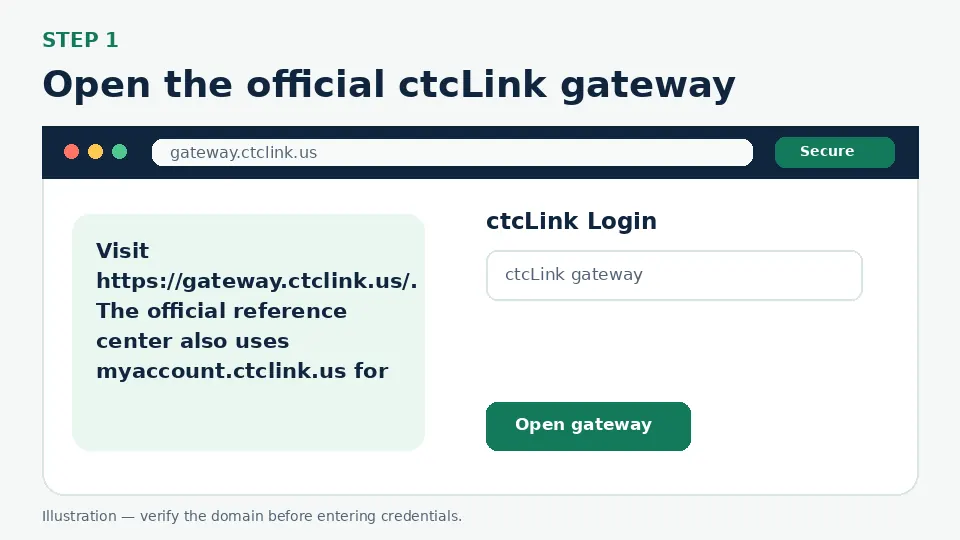
Open the official ctcLink gateway
Visit https://gateway.ctclink.us/. The official reference center also uses myaccount.ctclink.us for account-management and recovery tasks. Confirm the address ends in ctclink.us.
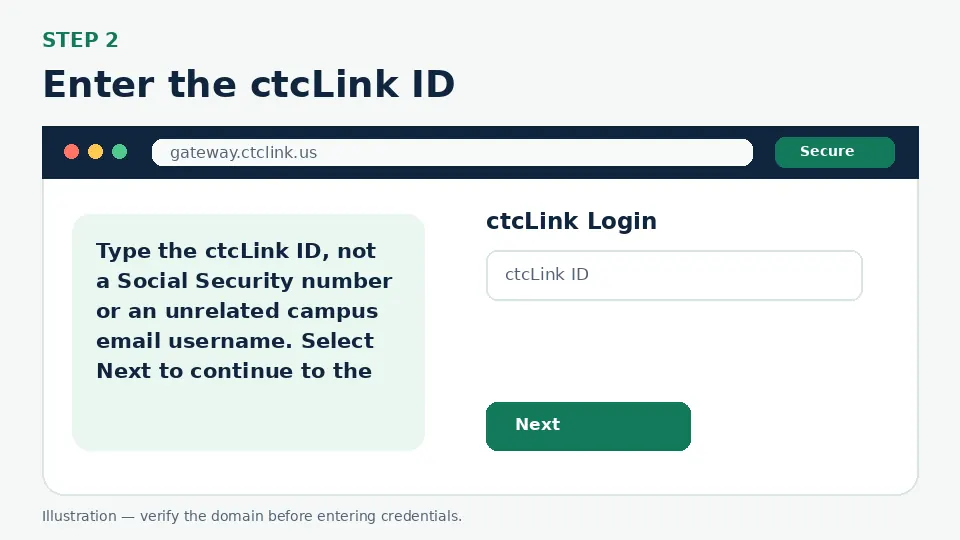
Enter the ctcLink ID
Type the ctcLink ID, not a Social Security number or an unrelated campus email username. Select Next to continue to the password screen.
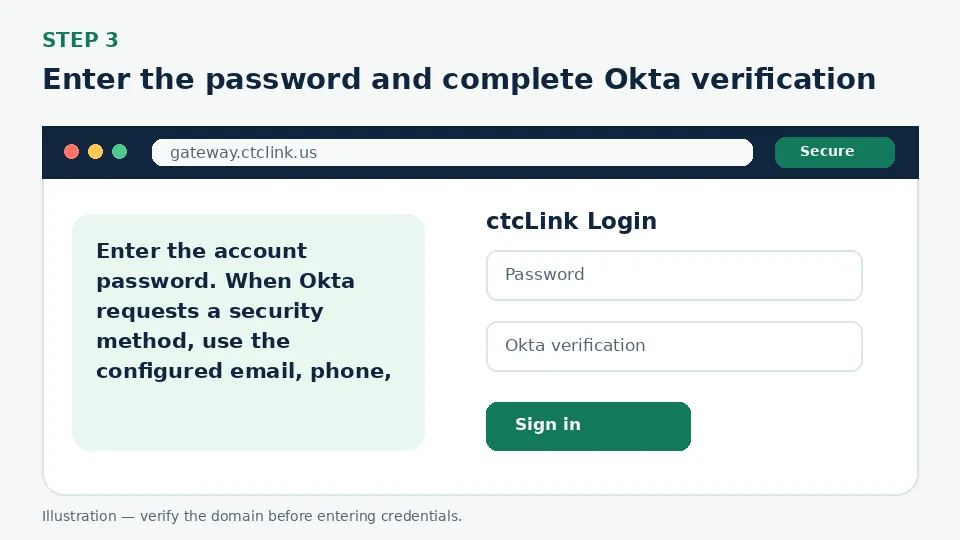
Enter the password and complete Okta verification
Enter the account password. When Okta requests a security method, use the configured email, phone, code or push notification. Select “Verify with something else” only within the official Okta/ctcLink flow.
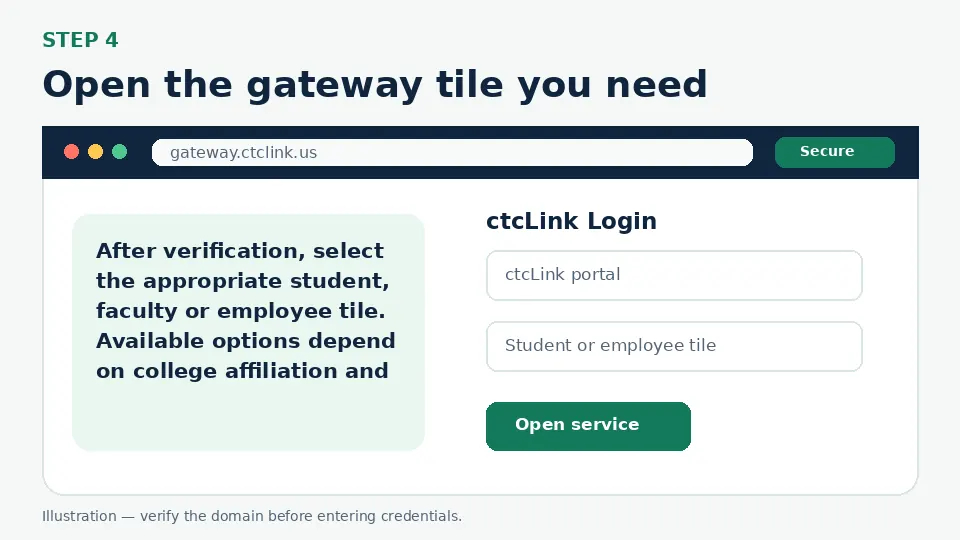
Open the gateway tile you need
After verification, select the appropriate student, faculty or employee tile. Available options depend on college affiliation and assigned roles.
First-Time Account Setup
Account activation establishes the password and recovery methods. The official activation instructions ask the user to set a password and add a preferred email and optional phone methods for recovery. Those methods must be validated before they can be used for password reset or account unlock. Follow the activation link provided by the college; do not use another person’s ctcLink ID.
Forgot Username or Password
From the myaccount sign-in page, enter the ctcLink ID and choose Reset Password. Select email or phone only if that method was previously added and validated. The current official guide says email reset links expire after 15 minutes in the described flow. The Unlock Account option uses a similar verification process. If no method works, contact the college help desk.
MFA, Verification Codes and Single Sign-On
ctcLink uses Okta security methods. Depending on setup, users may approve an Okta Verify push, enter a code, receive email, use SMS or take a voice call. If a push appears that you did not initiate, deny it and contact the college help desk. Never approve repeated prompts merely to make them stop.
Common Login Problems and Direct Fixes
| Problem | Likely cause | What to do |
|---|---|---|
| ctcLink ID is rejected | The ID is mistyped or the account is not activated | Use the activation information from the college and contact its help desk. |
| Reset method is unavailable | Email/phone was not added and validated | Ask the college help desk to assist with account recovery. |
| Reset link expired | The link was opened after its allowed window | Request a fresh reset and use the newest message. |
| Account is locked | Repeated failed sign-ins or security action | Use Unlock Account or contact the college help desk. |
| Okta push was not initiated by you | Someone may be attempting to sign in | Deny the request and report it to college support. |
| Portal tile is missing | The role or college affiliation is not provisioned | Contact the relevant college office or help desk. |
Mobile and Browser Troubleshooting
- Start from the official login URL instead of a search advertisement or a saved third-party page.
- Use an updated version of Chrome, Safari, Firefox or Edge and allow cookies required by the official portal.
- Close duplicate sign-in tabs before retrying, especially when an SSO or Okta flow returns to the login screen.
- Switch between Wi-Fi and cellular data only to test connectivity; do not bypass employer security controls.
- Do not store credentials on a shared computer. Sign out fully after accessing payroll, school or employee information.
How to Avoid Fake Login Pages
Bookmark the official destination after confirming gateway.ctclink.us. A fake page may copy colors and logos but use a misspelled address, ask for an MFA code before a normal password step, request payment, or tell you to send credentials to “support.” Leave that page and open the official domain manually.
ctcLink Login FAQs
What is the official ctcLink login website?
Use https://gateway.ctclink.us/. Account recovery is also documented through myaccount.ctclink.us.
What do I enter as the username?
Enter the activated ctcLink ID assigned through the college system.
Does ctcLink use Okta?
Yes. Official ctcLink guidance describes Okta password, MFA, recovery and account-unlock processes.
How do I reset the ctcLink password?
Enter the ctcLink ID on the official account page, choose Reset Password and verify with a previously configured email or phone method.
How do I unlock ctcLink?
Select Unlock Account on the official sign-in page and complete the available email or phone verification.
Why is email recovery unavailable?
The email may not have been added and validated during activation.
How long does a reset email link last?
The current official reset guide describes a 15-minute expiry for the email link in that flow.
Who supports ctcLink login problems?
Contact the help desk or advisor at your own college for credentials, student-ID and account-provisioning issues.
What should I do with an unexpected Okta push?
Deny it and report the attempt. Do not approve a prompt you did not initiate.
Why is a ctcLink tile missing after login?
The college may not have assigned the required role or affiliation to the account.
Official Sources and Verification
This guide was written from the official portal and support material listed below. Portal interfaces can change, and an employer, school or organization may use a custom SSO path. The organization’s current instructions control when they differ from a general guide.